

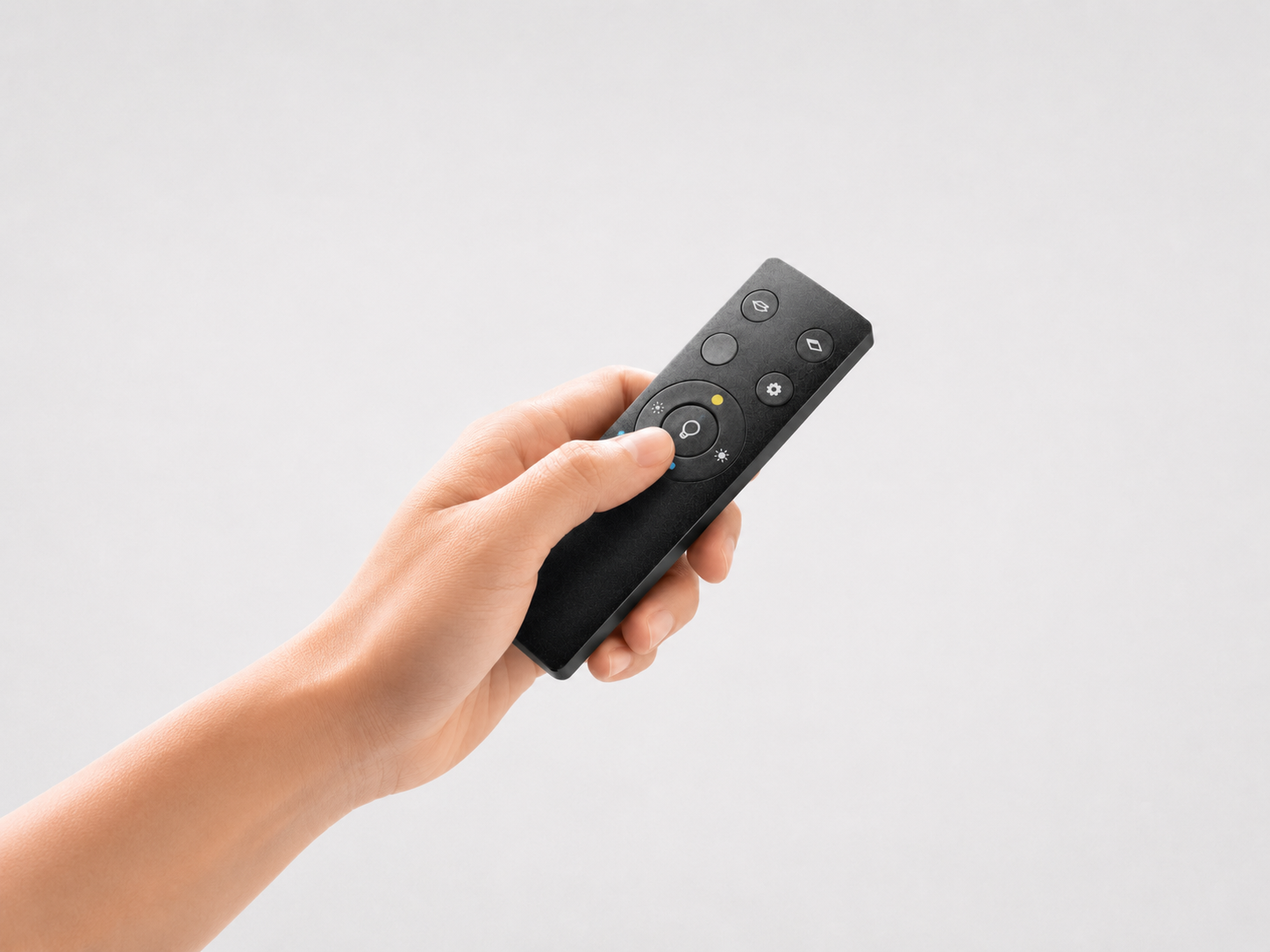
Managing your Skylux remote control(s) efficiently
Whether you need to pair a new remote control, want to manage multiple devices with a single remote control, or even want to pair multiple remote controls with one device, we have simplified the steps for you. Here is your complete guide to efficiently pairing, managing and unpairing your Skylux remote controls.
Lost remote control
- Order a new remote control from Skylux.
- Start pairing mode: press the pairing button (P) on the keypad until you hear 2 beeps (🎵🎵) or the green LED on the keypad of your device flashes twice, then release the button.
- Press any button on the new remote control that applies to your Skylux device.
- Three beeps (🎵🎵🎵) and a flashing green LED on the keypad confirm the new pairing.
I want to use one remote control for multiple devices
- Press and hold the pairing button on the keypad (P) of the device until you hear 2 beeps (🎵🎵) or the green LED on the keypad of your device flashes twice, then release the button.
- Then press any button on the selected remote control.
- The three successive short beeps (🎵🎵🎵) confirm successful pairing.
Important note for grouping:
Pairing multiple devices to one remote control can cause range issues, which may prevent all devices from being synchronized. To correct this, within range of the devices, press and hold the relevant function icon on the remote control for a few seconds. When you release it, the devices will return to their starting position.
I want to use multiple remote controls for one device
- Use a remote control that is already paired with the device. If you do not have one, follow the instructions under 'Lost Remote Control' and repeat for each additional remote control.
- Press and hold the setup button (⚙️) on the current remote control until you hear 2 beeps (🎵🎵) or the green LED on the keypad of your device flashes twice, then release the button.
- Then press any button on the new remote control.
- Three successive beeps (🎵🎵🎵) and a flashing green LED on the keypad confirm successful pairing.
Please note: You can pair up to 10 remote controls per device.
I want to unpair my remote control(s)
Unpair remote controls
- Press and hold the reset button (R) on the keypad until you first hear 2 (🎵🎵) and then 3 beeps (🎵🎵🎵), or until the green LED on the keypad of your device flashes three times (this happens after about 12s), then release the button.
- The red LED on the keypad is now flashing
- Confirm the reset by briefly pressing the reset button 'R'
- Three short beeps (🎵🎵🎵) and a flashing green LED on the keypad confirm the unpairing.
- If you want to pair the remote control again, follow the instructions under 'remote control lost'
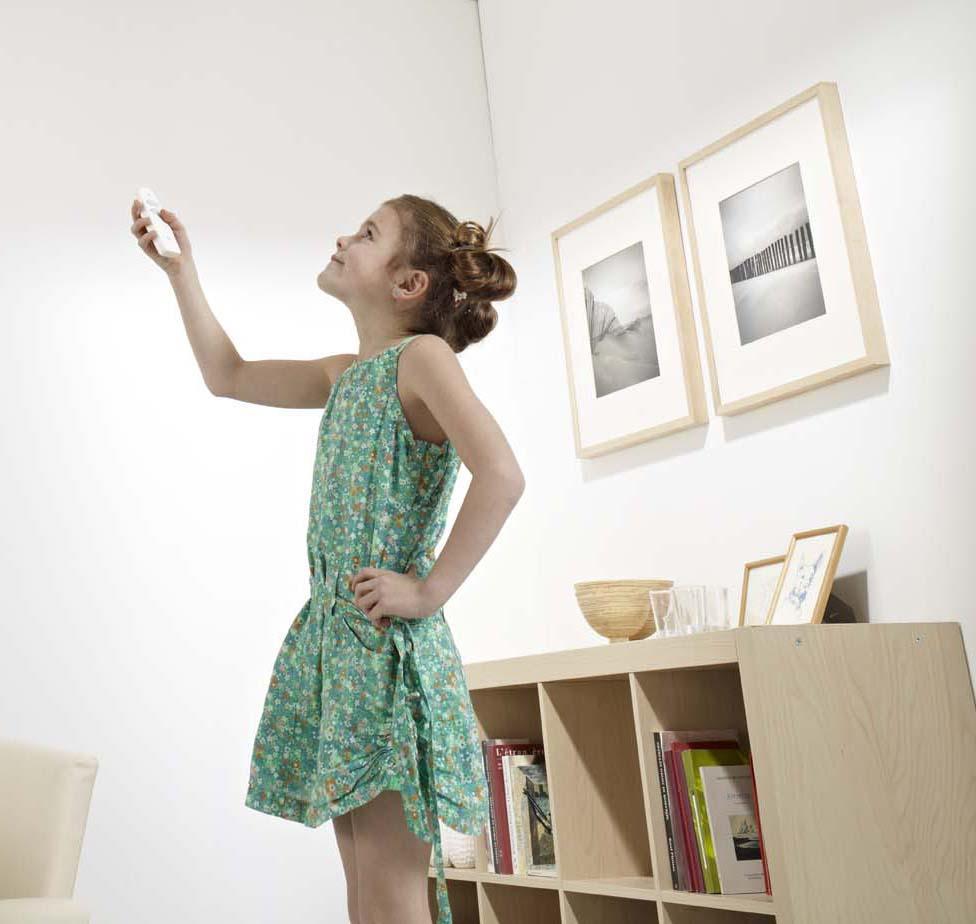
How do you pair a new Skylux remote control?
- Preparation: Make sure you are standing close to the device you want to pair with the new remote control.
- Activate pairing mode: Press the 'pairing button' on the keypad (P) of your device. Hold it down until you hear two beeps (🎵🎵) or until the green LED on the keypad of your device flashes twice.
- Start pairing: Take the new remote control and press any button.
- Confirmation: Listen for three short beeps (🎵🎵🎵). At the same time, the green LED on the keypad will also flash three times. This sound signal confirms that the new remote control has been successfully paired with your device.
- Test: Try operating your device with the new remote control to confirm that pairing was successful.
Make sure to store the remote control safely to avoid having to pair or replace it again. Good luck with your Skylux remote control.
Help. My remote control is not working.
01. Check reception
- Move closer to the device.
- Press a button on the remote control: the green light on the keypad should light up, which means the signal has been received.
02. Check the battery
- If the green light on the keypad does not light up, the battery may be empty.
- Open the cover at the bottom of the remote control and replace the 3V CR2032 button cell battery.
03. Power supply issue?
Solar Pack battery status (Skylux Solar products only):
Briefly press the setup button on the remote control and check the number of lights on the keypad:
- 3 lights: Battery is in good condition.
- 2 lights: Battery is almost empty.
- 1 light: Battery is empty, so the device no longer works.
Power supply status (non-Solar products):
Check the power supply of your device. Briefly press the setup button and observe the lights on the keypad:
- 3 lights: Power supply is good.
- 0 lights: There may be a power supply issue.
04. Restart your Skylux device:
- Press and hold the reset button (R) on the keypad until you hear first 2, then 3 and then 4 beeps (🎵🎵🎵🎵), or until the green LED on the keypad of your device flashes three times, then release the button.
- The red LED on the keypad is now flashing
- Confirm the reset by briefly pressing the reset button 'R'
- Three short beeps (🎵🎵🎵) and a flashing green LED on the keypad confirm the restart.
05. Remote control not paired?
- If the green light does not light up and there is no issue with the power supply, the pairing may have been lost
- See the instructions above on pairing new remote controls.
06. Red light on the keypad?
Contact the Skylux support service via contact. (service@skylux.be or call us on +32 (0) 56 20 00 00)
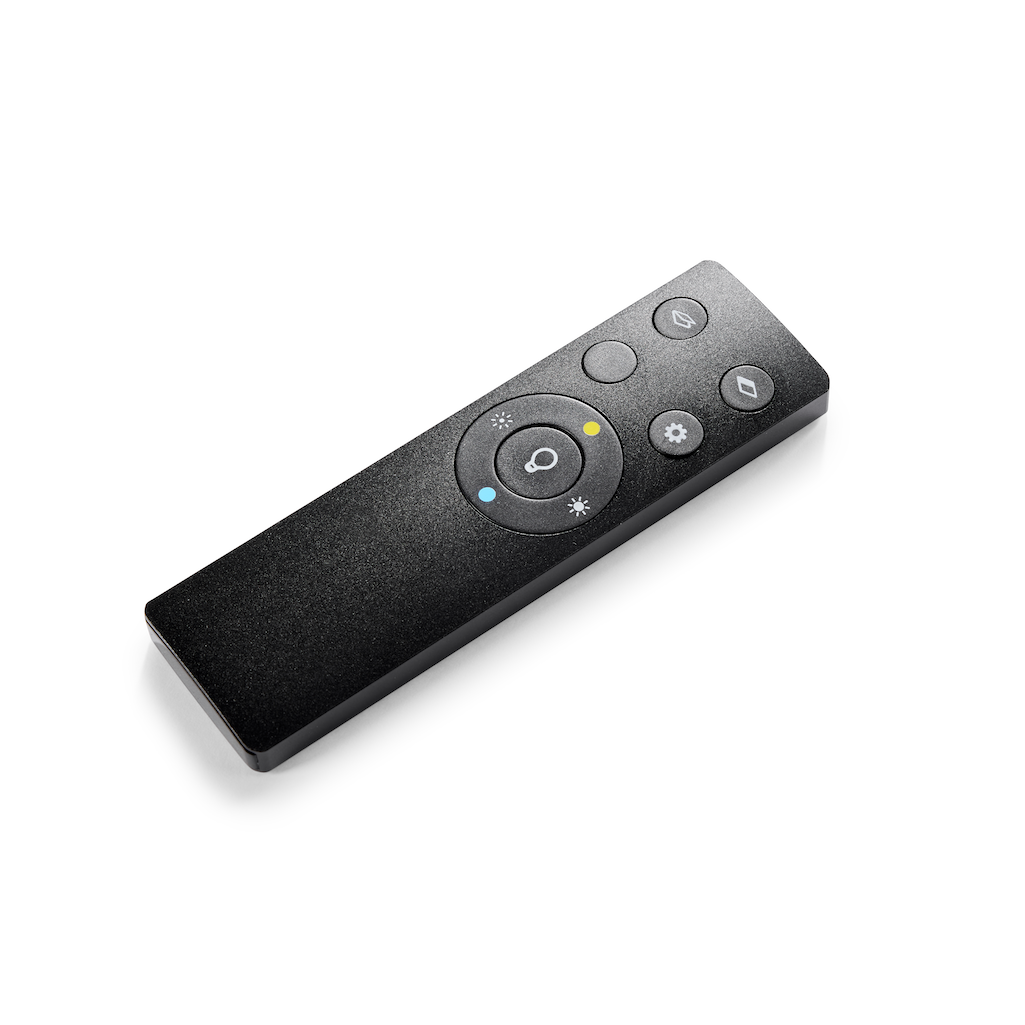
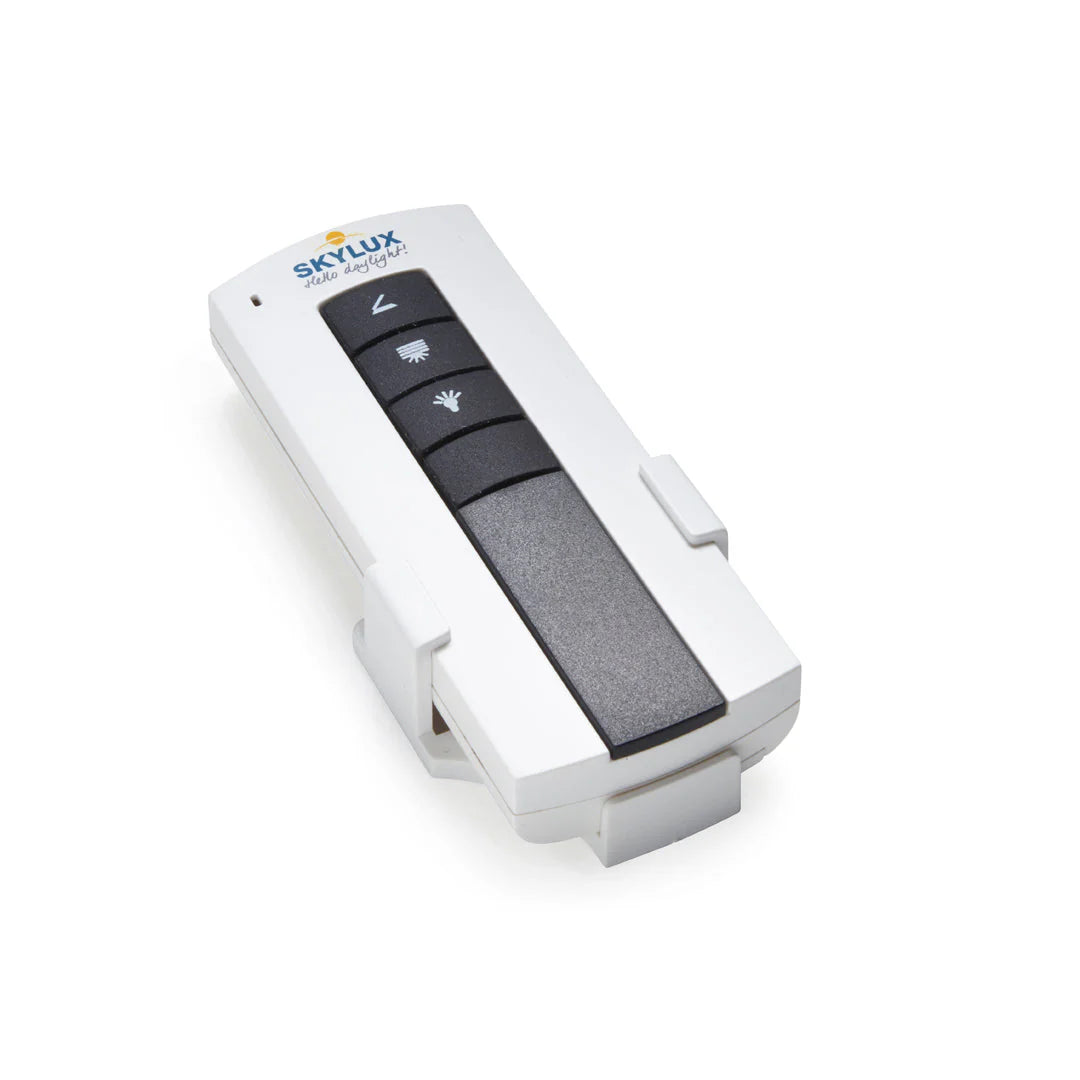
Remote control for iWindow2 & 3 / iDome / iWindow Flex
Using the Skylux remote control efficiently and correctly ensures a seamless experience with your Skylux devices. If anything is unclear or if problems arise, you can always rely on this manual. Remember that if problems persist or if you have any questions, the Skylux team is always ready to assist you. Enjoy the ease and comfort your Skylux devices offer.