

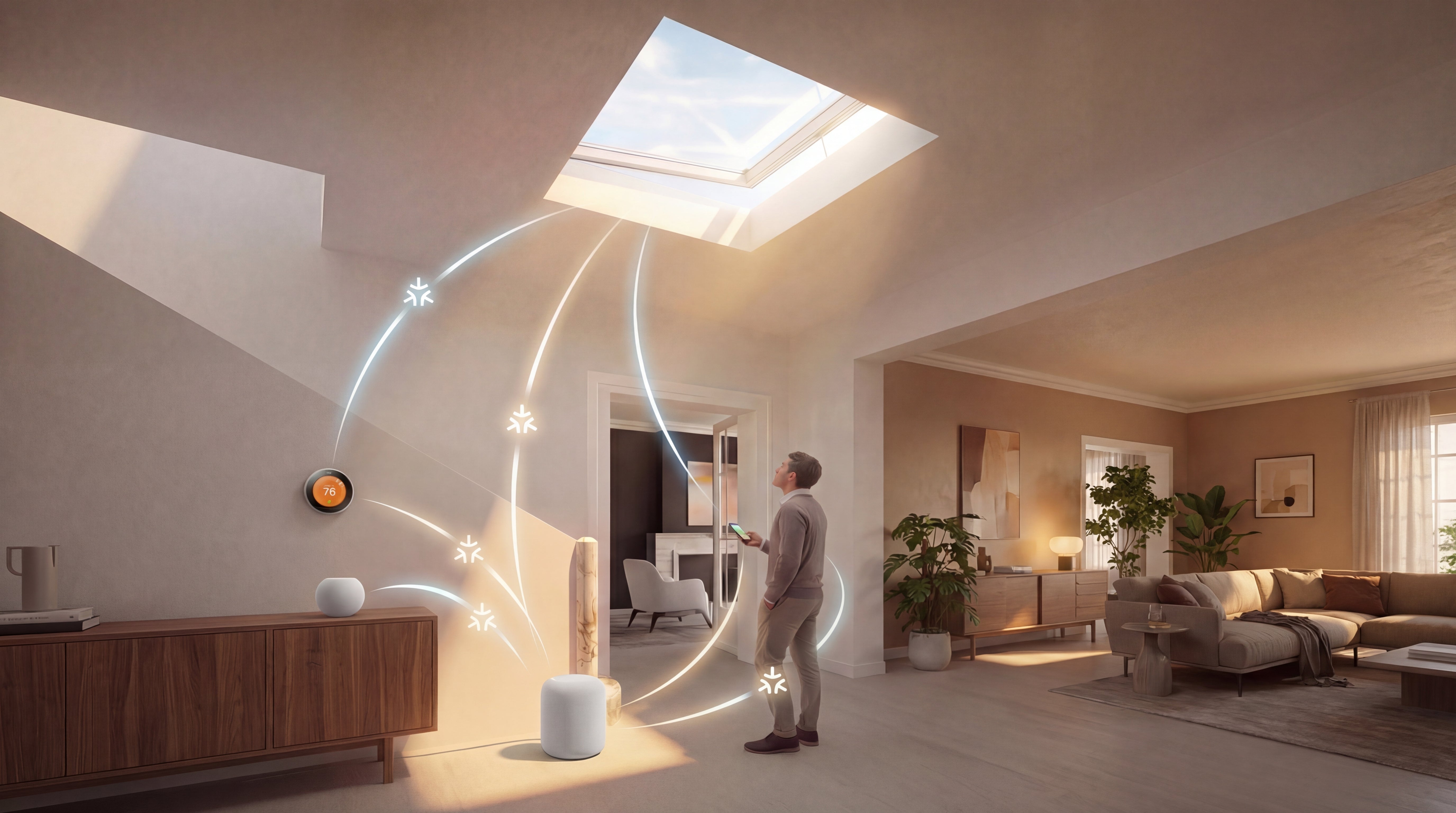
What do you need to get started?
Check that you have the 3 basic requirements before you begin. Have everything? Then you'll be ready in 5 minutes.
1. Skylux Matter device
iWindow Openable, electric screen or iWindow Flex
2. Thread border router
Google Nest Hub, Apple HomePod mini, etc.
3. Smartphone (Android/iOS)
Android 8.1+ or iOS 16.1+
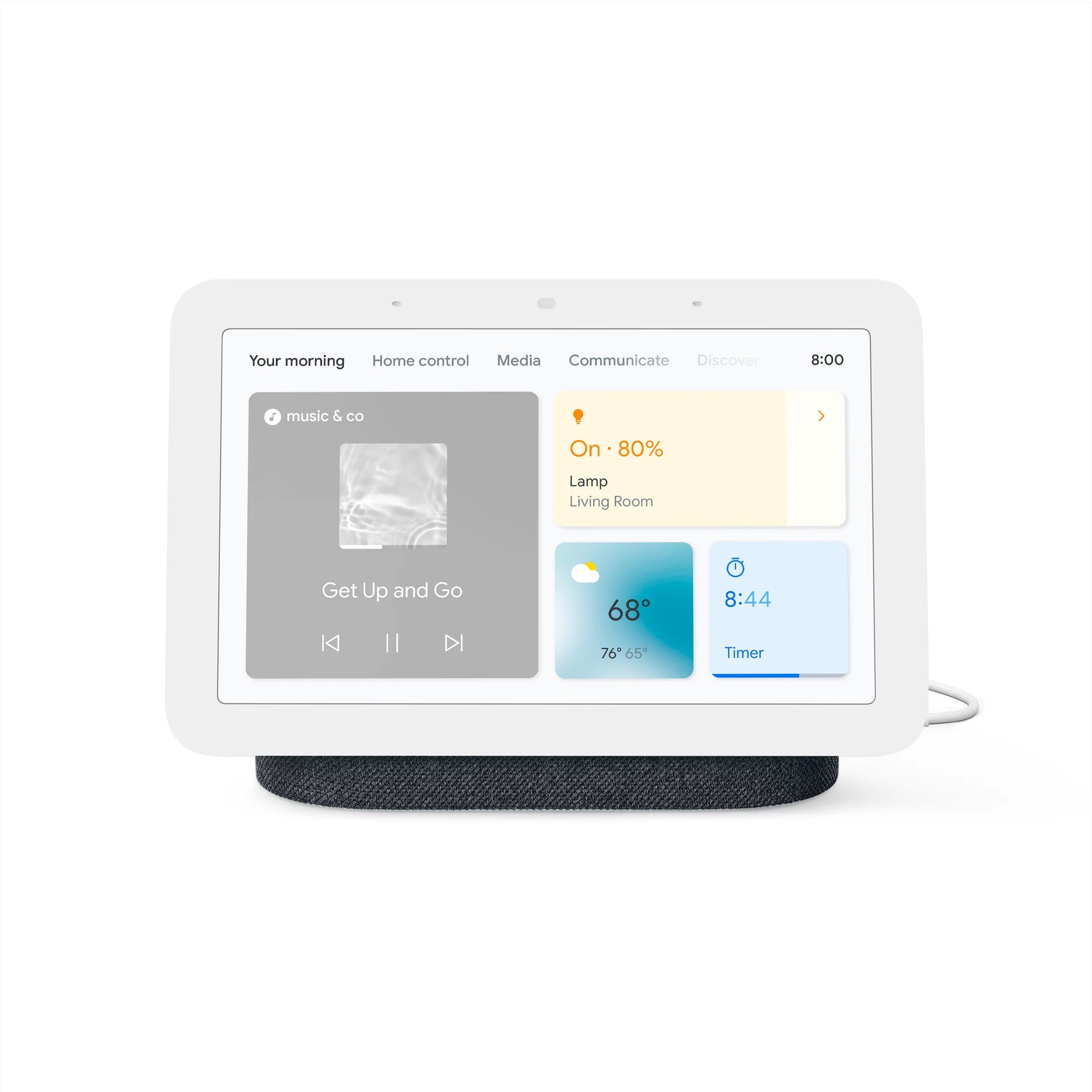
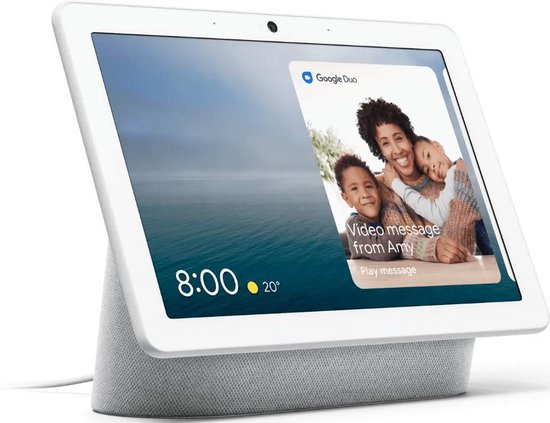
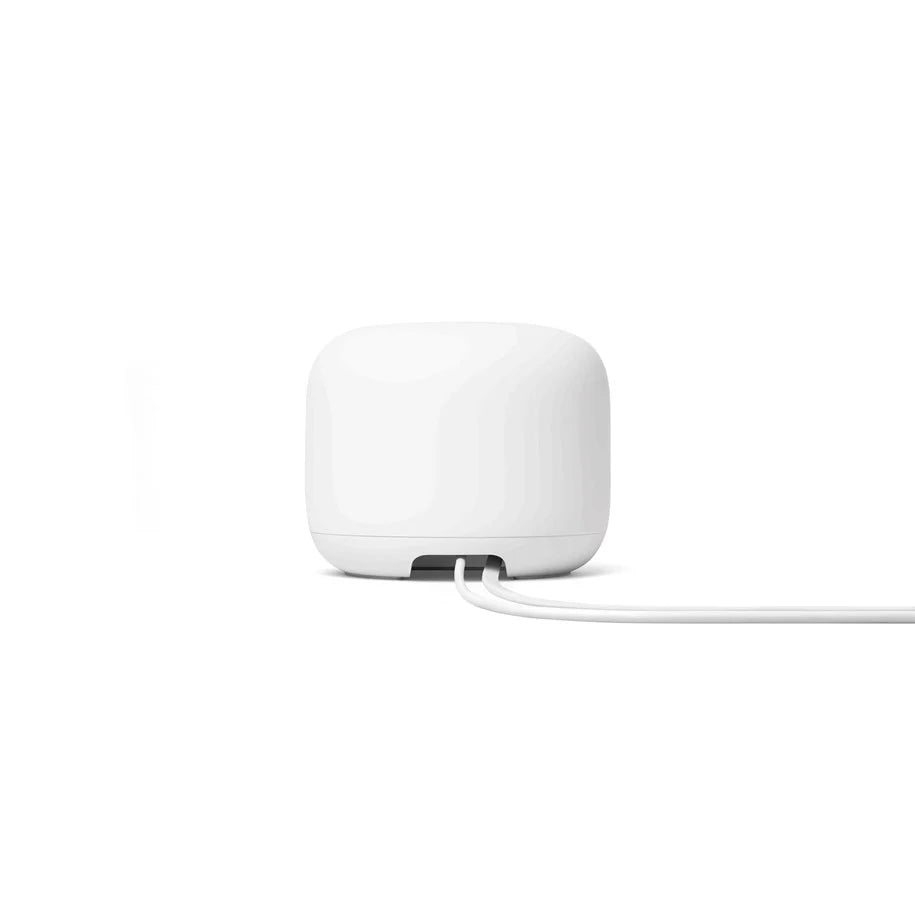
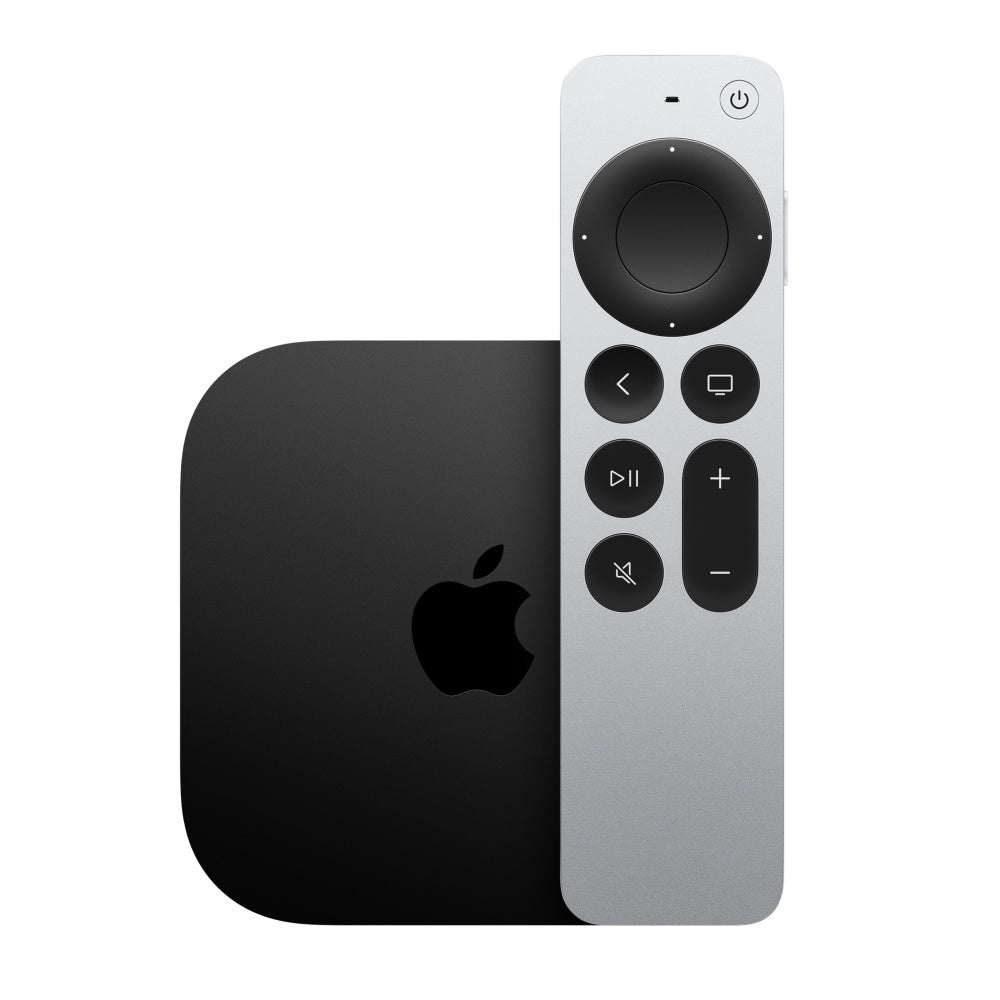
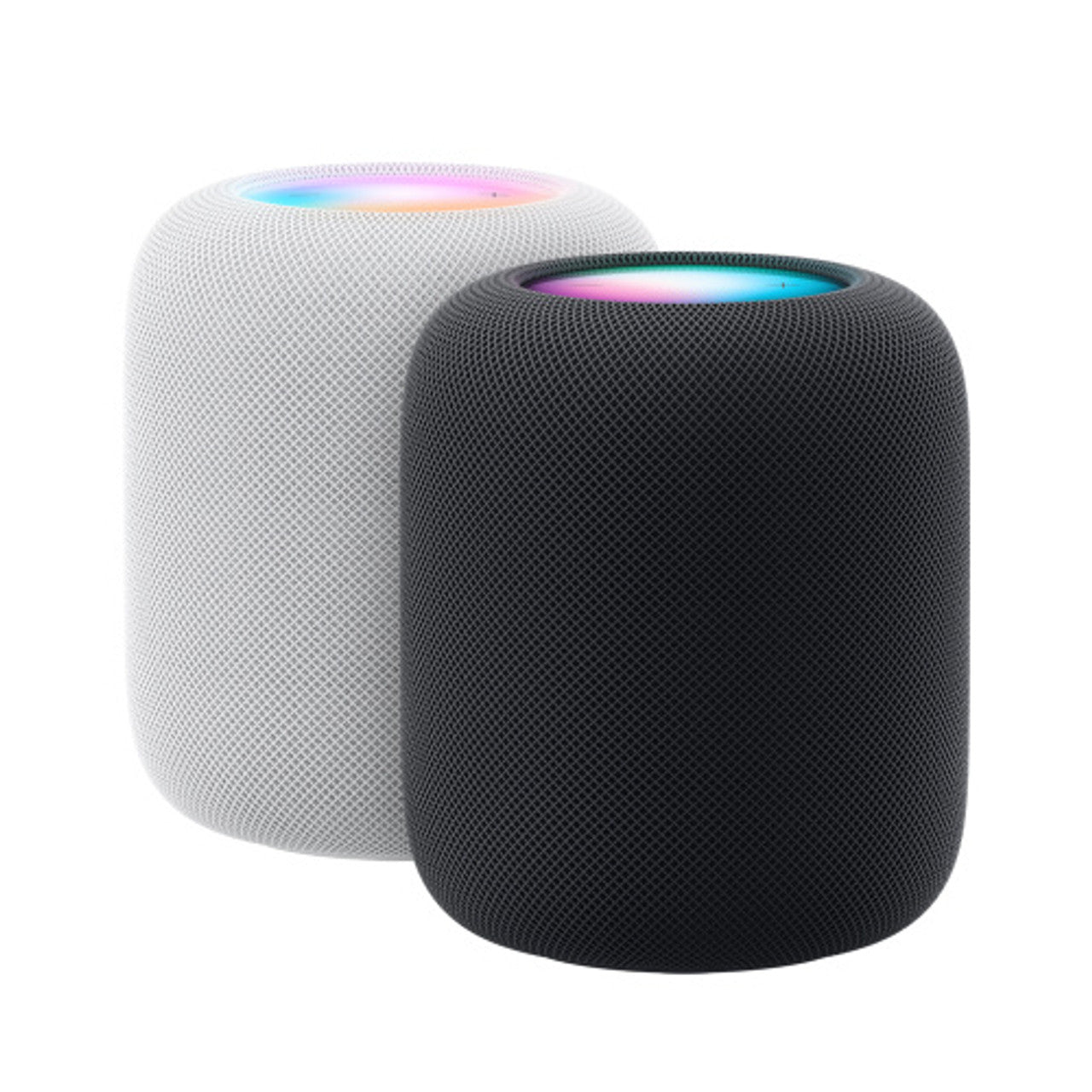
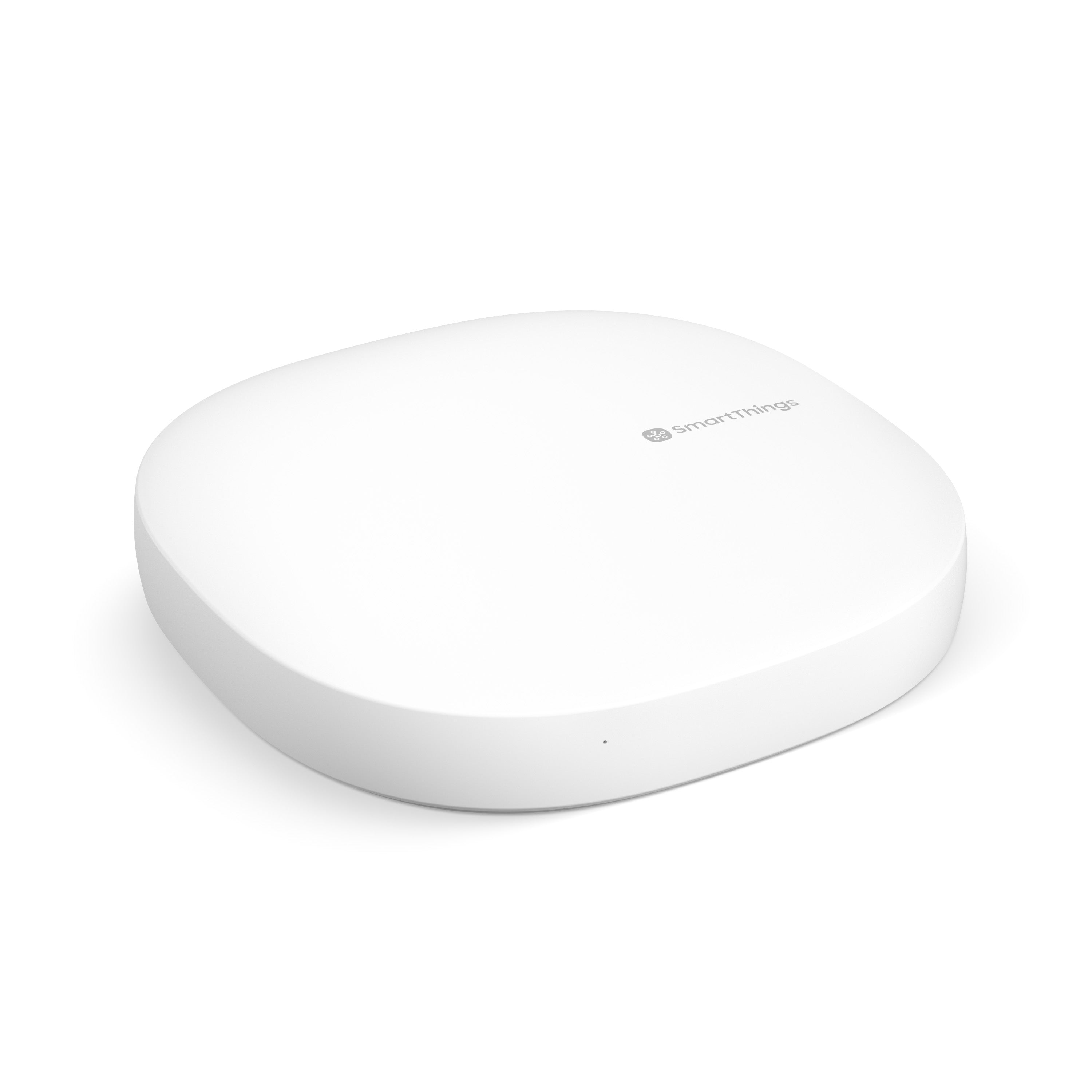
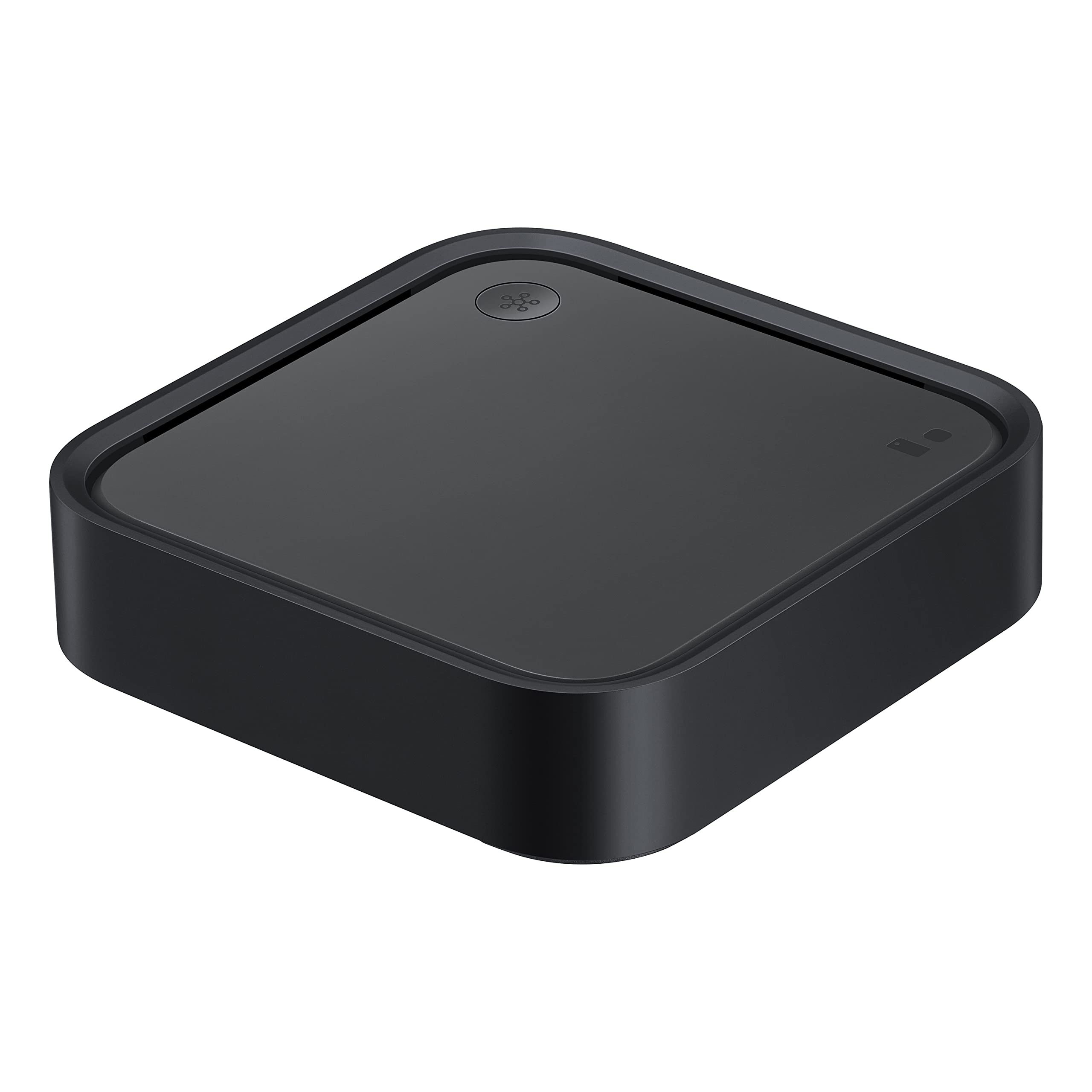
Border routers compatible with Skylux
A Thread border router
A 'Thread border router', such as the Google Nest Hub or Apple HomePod mini, enables the connection between your Skylux device and your Wi-Fi or Ethernet network. This allows you to control your device via your smartphone or tablet.
You may already have a Border Router or Matter-compatible devices at home that can act as a Border Router. This can save you time and money. Take a look at the following devices you may already own:
Please note that the Amazon Echo (4th-gen) is currently not yet compatible with Skylux products and that Samsung SmartThings can only be used for electric screens.
So before purchasing a new Border Router, take a look around your home. You may already have everything you need to control your Skylux device and enjoy a smart home experience.
A smartphone or tablet (Android or iOS)
To control your Skylux device, you need a smartphone or tablet running Android or iOS. Depending on your platform and the chosen border router, you need to download the corresponding app:
- Android: If, for example, you choose a Google Nest Hub Max (as border router), you need the Google Home app. > System requirements: Android 8.1 or newer
- iOS: For Apple HomePod mini, download and install the Apple Home app. > System requirements: iOS 16.1 or newer
These apps make it possible to control your Skylux device and any other smart devices in your home.
Instructions: Step by step
Follow the steps below in order. From choosing the app to first use: you'll be connected in 5 minutes.
Step 1
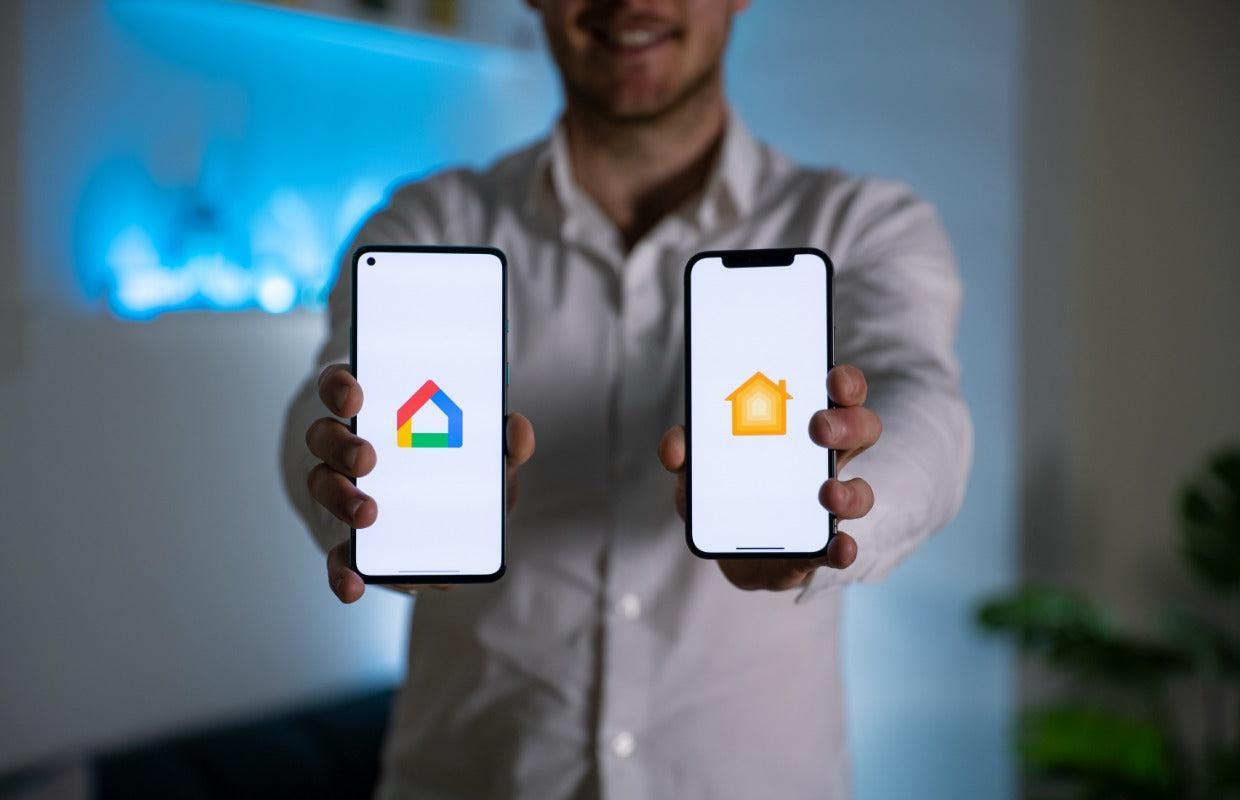
Select your Smart Home app
To control your Skylux product, you need an app on your smartphone or tablet. The best app to choose depends on the devices you already have at home:
- Do you have a Google Nest? Then choose the Google Home app. This is the best choice for anyone using an Android device (such as Samsung) or Google devices.
- Do you have an Apple HomePod or iPhone? Then choose the Apple Home app (also called Apple Home). This works best if you already use Apple devices.
Our tip: Choose the app you already know or that is already on your phone. This keeps control of your entire home in one central place.
Step 2
Install the app on your phone
Now that you know which app you will use, you can download it to your smartphone or tablet.
- For Google Home: Go to the place where you normally download apps (the Play Store on an Android phone or the App Store on an iPhone). Search for ‘Google Home’ and tap ‘Install’.
- For Apple Home: On an iPhone or iPad, this app is usually already installed by default. You will find it under the name ‘Home’ (with the little house icon). Can't find the app? Then download it for free from the App Store.
Ready? Once the app appears on your screen, you can move on to the next step.
Step 3
The central connection point
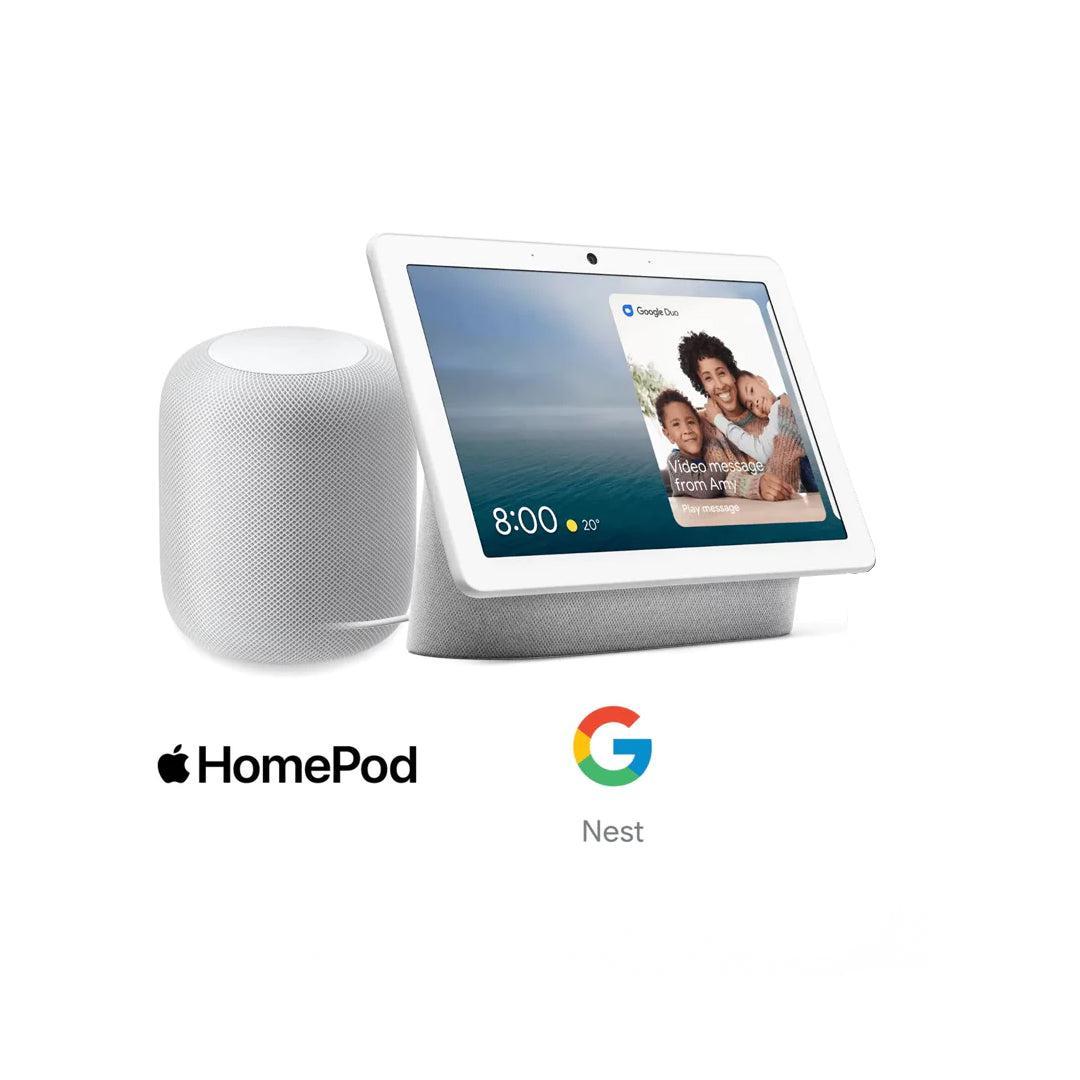
If you have a smart device at home such as a Google Nest Hub or Apple HomePod, it also acts as your 'border router'.
- Already have an active hub? Skip this step and go straight to the controls.
- Pairing a new hub? Open your Smart Home app and select ‘Add device’.
- Complete the installation: Scan the manufacturer's QR code to establish the connection.
After pairing, your Skylux device is fully integrated and ready to use.
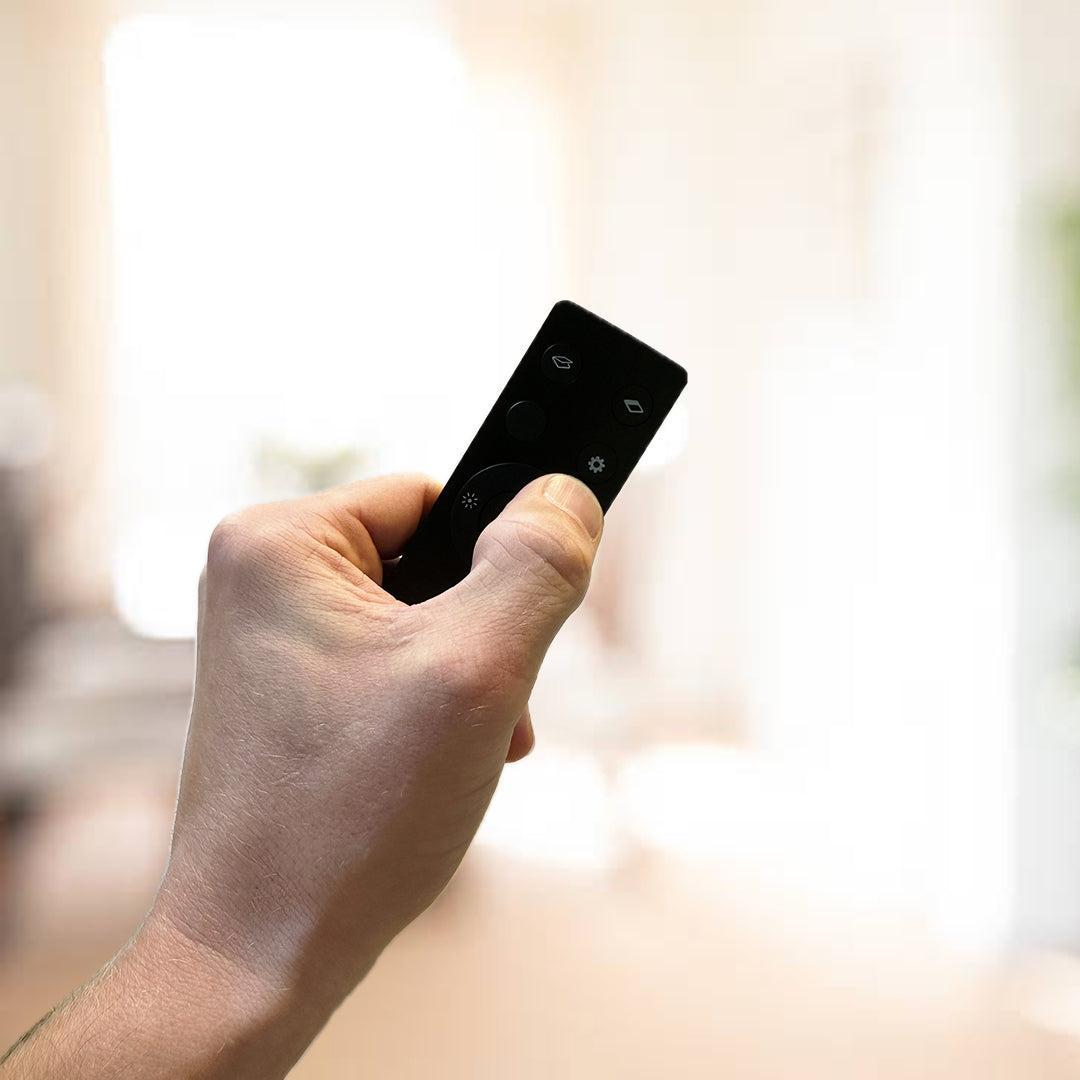
Step 4.1
Activate via remote control
- Find the button with the gear (⚙️) symbol on your Skylux remote control and press and hold it.
- Keep holding until you first hear two (🎵 🎵) and then three beeps (🎵 🎵 🎵 ) or until the green LED on the keypad on your device flashes three times, then release the button.
- You will see the blue LED on the Keypad start flashing, which means pairing mode has been activated.
As soon as the blue LED starts flashing, you have 10 minutes to complete the pairing.
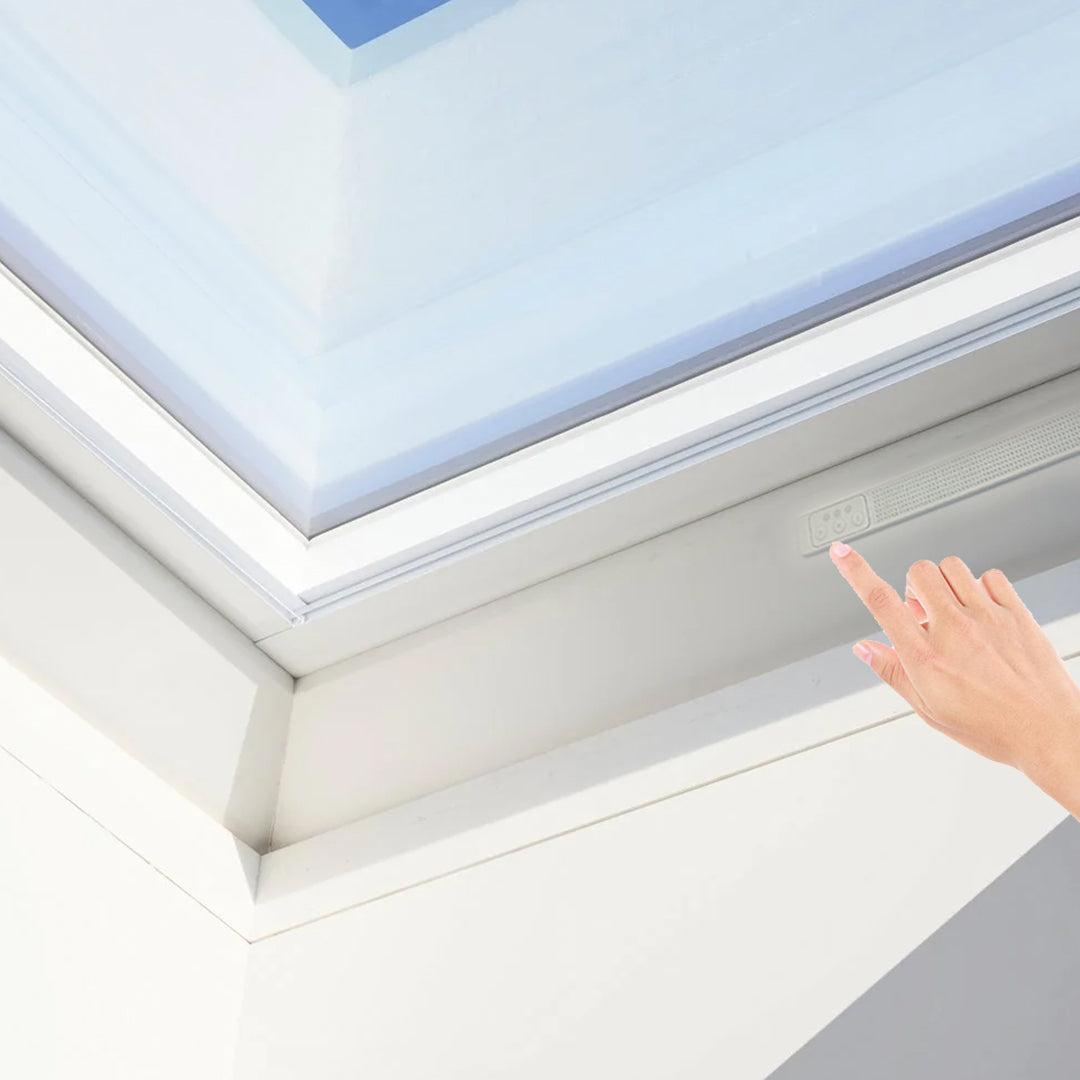
Step 4.2
Activate via the keypad
- Press and hold the button marked with a 'P' on the Keypad.
- Keep holding until you first hear two (🎵 🎵) and then three beeps (🎵 🎵 🎵 ) or until the green LED on the keypad flashes three times, then release the button.
- You will see the blue LED on the Keypad start flashing, which means pairing mode has been activated.
As soon as the blue LED starts flashing, you have 10 minutes to complete the pairing.
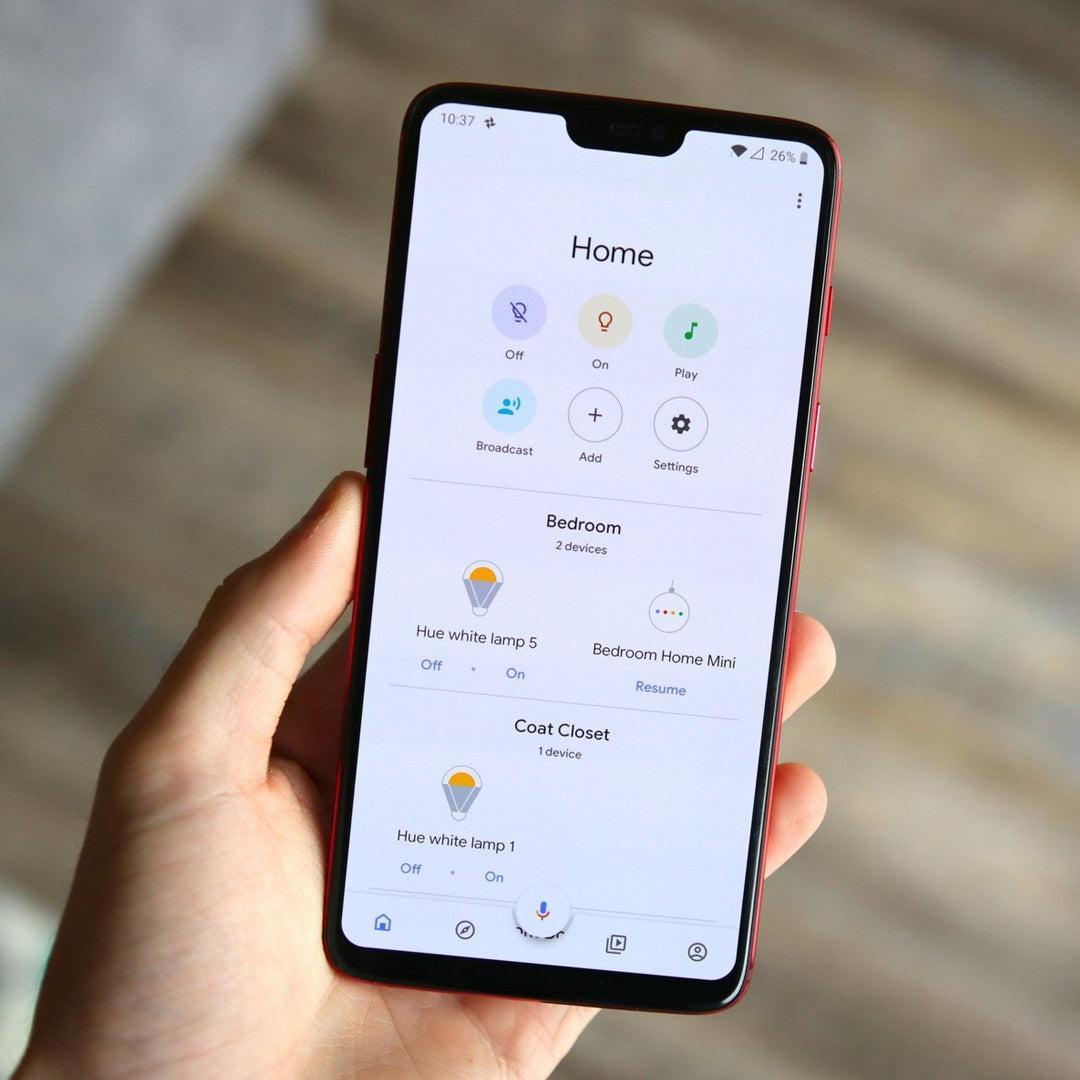
Step 5
Add your Skylux device
- Now you need to add your Skylux device to the app you installed.
- The Matter QR code you need to scan can be found in the installation instructions or on the back of the remote control. Three short beeps (🎵 🎵 🎵) confirm that your device has been added successfully.
Please note: If you follow the instructions to share your device across multiple apps, you must scan/copy the QR code/numeric code you generated in your app into your new app.
Congratulations

You have now successfully added your Skylux device
Frequently asked questions
How do I unlink my device from the app?
1. Reset
a. Via the keypad:
Press the reset button (R) on the keypad and hold it until you hear two beeps (🎵🎵) or the green LED flashes twice. Then release the button — the red LED will now start flashing. Briefly press the 'R' button to confirm the reset.
b. Via the remote control:
Press and hold the gear button (⚙️) until you hear two, three and four beeps in succession (🎵🎵🎵🎵) or the green LED flashes four times. Release the button — the red LED will start flashing. Briefly press the gear button (⚙️) to confirm the reset.
2. Confirmation
Three short beeps (🎵🎵🎵) and three flashes of the green LED confirm that the reset was successful.
Important: The device will remain visible in the app but can no longer be operated. To remove it completely: go to the device settings in the app, find the relevant device and choose the "Remove" or "Unlink" option.
3. Settings
Go to the device settings in the app.
4. Search
Find the device you want to remove.
5. Remove
Choose the option to remove or unlink the device.
Help, I've lost my Matter QR code. What now?
First perform a factory reset (see "How do I disconnect my device from the app?" above).
1. Activate pairing mode
Put your device back into pairing mode:
- Via the keypad: Press and hold the pairing button (P) until you hear three beeps (🎵🎵🎵) or the green LED flashes three times. The blue LED will then start flashing.
- Via the remote control: Press and hold the gear button (⚙️) until you hear three beeps (🎵🎵🎵) or the green LED flashes three times. The blue LED will then start flashing.
2. Find the device number
Open the Bluetooth settings on your smartphone and note down the number of your Skylux device. Are you an iOS user? Then the device may not appear in the standard Bluetooth settings. In that case, install a Bluetooth scanner app (e.g. Wunderfind) to find the device number.
3. Contact us
Call Skylux customer service and provide the number you noted down. We will help you via service@skylux.be or +32 (0) 56 20 00 00.
Which smart home app offers the most features for my Skylux device?
The features of smart home apps, especially when it comes to automations, vary considerably. At the moment, Apple Home is the most complete app, but it is only available to iOS users. In the Samsung SmartThings app, a user can only add a device that has one function, making this app suitable for standalone screens or complete sets/flex without additional options or accessories. For Skylux devices, the available features depend on the app manufacturer, and it is possible that more functions will be added in the future or that certain current features will be supported later.
If you have any questions or comments about this, you can always contact me. We closely monitor the features of the different apps so that we can keep this overview up to date.
I am having problems with the installation process, what can I do?
Watch our installation video "Easily connect your Skylux device". It visually guides you step by step through the full process. Still not working afterwards? Our customer service team will be happy to help:
- Email: service@skylux.be
- Phone: +32 (0) 56 20 00 00
What is Matter?
Matter is a standard that ensures a simple and reliable connection between smart devices from different brands, allowing them to work together seamlessly within one network.
Can I connect multiple Skylux devices to one Thread Border Router?
Yes, you can connect multiple Skylux devices to one Thread Border Router. Matter is designed to work seamlessly with multiple devices within a single network, making it ideal for building a comprehensive smart home system.
What is a Border Router and why do I need one?
A Border Router, such as a Google Nest Hub Max or Apple HomePod mini, connects your smart devices, such as the Skylux device, to your WiFi or ethernet. This makes it possible to control these devices with your smartphone or tablet.
Which app do I need to control my smart devices?
That depends on your Border Router. For example, if you have a Google Nest Hub Max, you need the Google Home app. For an Apple HomePod mini, the Apple HomeKit app is the best choice.
Does my Skylux device work with all versions of the Google Home, Apple HomeKit, Samsung SmartThings and Amazon Alexa apps?
Skylux devices work with the latest versions of these apps. We recommend always using the newest version for optimal performance and access to all features.
Please note — system requirements for your smartphone or tablet:
- Android 8.1 or later
- iOS 16.1 or later
What if my Thread Border Router is not on the list of compatible devices?
If your current Thread Border Router is not on our list, it may not be compatible with Skylux devices. In that case, you may want to consider purchasing a compatible router. Contact our customer service at service@skylux.be or by phone on +32 (0) 56 20 00 00 for further help choosing the right equipment for your needs.
What if you have problems with your Skylux device?
Are you experiencing problems with your Skylux device? The following guide will help you identify and resolve the most common causes.
01. Remote control not working?
- Consult the RF user manual.
02. App not working
a. Check your internet connection.
b. Check whether the border router is switched on and connected to the internet.
c. Check in the app whether your device is shown as 'online'.
If not, try the following:
- Restart the border router.
- Restart your Skylux device: press and hold the gear button (⚙️) until you hear two, three, four and five beeps in succession (🎵🎵🎵🎵🎵) or the green LED flashes five times. Release the button — the device will restart. Give the app a moment to sync again.
d. Has the device had connection problems before? If so, consult the section below: "Problems with the initial setup"
03. Problems with both remote control and app:
a. Check the power supply
Solar products:
Check the battery status via the remote control. Briefly press the gear button (⚙️) and count the number of lights lit on the keypad:
- 3 lights: battery OK
- 2 lights: low battery - charging recommended
- 1 light: critical level - charging required
Non-solar products:
Briefly press the gear button (⚙️) and check the keypad:
- 3 lights: power OK
- 0 lights: possible power issue - check the connection
b. Flashing red light?
This indicates an error:
- 2 flashes: object detection - the device detected an obstacle and stopped movement
- 3 flashes: loose cable detection - the electrical connection may be faulty
In that case, please contact service@skylux.be.
Problems with the initial setup (commissioning)
1. Check the blue light
After starting the setup, the blue light on the keypad should flash. Is this not the case? Go back to step 4 and repeat the activation procedure.
2. Check the network connection
Make sure the border router and your smartphone or tablet are connected to the same Wi-Fi network.
3. Device previously paired with another app?
The QR code on the remote control can only be used once. Is the device already paired with another app? Then use the multi-admin function or follow the page "Share your Skylux device with multiple applications".
4. Consider a full reset
A reset removes all existing app pairings. For this, refer to "How do I disconnect my device from the app?" above.
5. Restart the border router
Restart the border router and then give the app a moment to detect the device again.